Answer email at home in the morning, meet at the office before lunch, present at a client's office in the afternoon, and finish the report at a coffee shop in the evening. The same laptop has connected to four different networks in one day.
Which network is the safest? Many companies would say the office, because that's where the firewall is. But look at it another way: if the laptop is protected only at the office, it spends most of the day without protection.
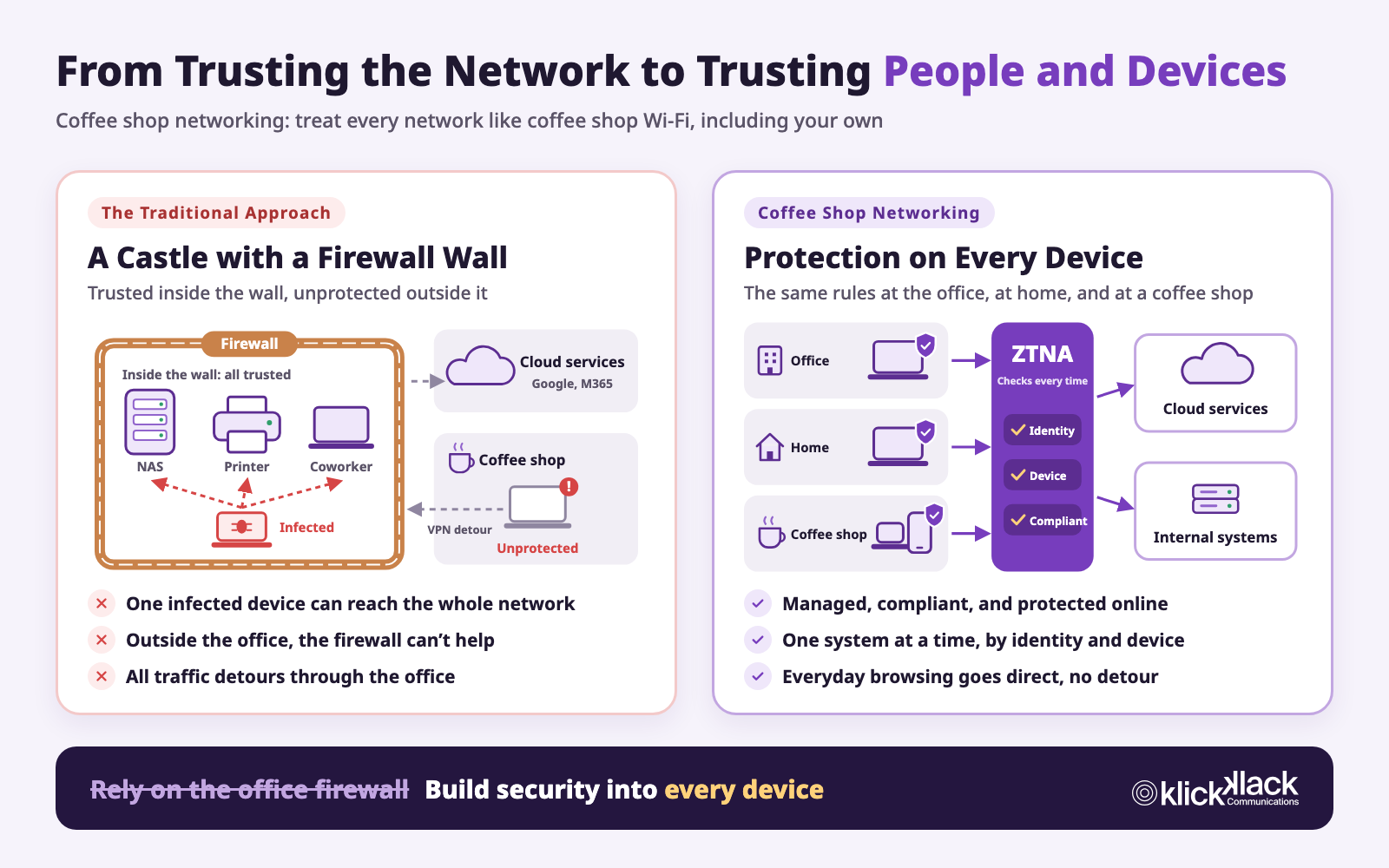
Coffee shop networking flips the question around: treat every network like coffee shop Wi-Fi, including your own. Security no longer depends on where you're connected. It's built into every device.
What Is Coffee Shop Networking?
When you use Wi-Fi at a coffee shop, you don't assume the person at the next table can be trusted, and you don't expect the coffee shop's network to block malicious websites for you. You make sure your own device is up to date and protected, and you sign in and verify yourself before using company systems.
Coffee shop networking applies that habit everywhere:
- The company network just provides internet access: The office network works like the coffee shop's. It delivers fast, reliable connectivity, but being in the office doesn't grant extra access.
- Trust depends on people and devices: Whether you can use company systems depends on who you are, whether your device is managed by the company, and whether it's in a safe state right now.
- The same rules everywhere: At the office, at home, or at a coffee shop, the same set of rules applies.
The term has caught on in the networking and security industry in recent years, and the idea behind it is the principle known as zero trust:
- NIST's zero trust architecture document, SP 800-207 (2020), states that no implicit trust is granted to users or devices based only on their physical or network location, such as being on the office network instead of the internet.
- One of the zero trust principles from the UK's National Cyber Security Centre (NCSC) is don't trust any network, including your own. Every network between the device and the service, including the local network, should be treated as untrusted.
- In Taiwan, the government's zero trust architecture, promoted by the National Institute of Cyber Security, is built on three core mechanisms: identity authentication, device authentication, and trust inference. Device authentication confirms that a person's device is managed by the agency and in an acceptable security state, in part to support remote work and working from home.
Where an Office Firewall Falls Short
The traditional approach works like a castle. A firewall around the office network is the wall, and every person and device inside is treated as one of your own. That made sense when everyone sat in the office and the data lived in the server room. Today, there are at least four gaps:
- Protection disappears when people leave the office: When a laptop is online at home, at a coffee shop, or at the airport, the company firewall can't reach it. Avoiding phishing sites and malicious downloads is left up to each person.
- Once inside the wall, everything is trusted: A single infected laptop plugged into the office network may be able to reach the NAS, the printers, and other computers. Attackers love environments where getting in means getting everywhere.
- All traffic gets routed back to the office: To keep control, some companies require remote team members to send all traffic through a VPN back to the office and out through the office firewall. The internet slows down, office bandwidth fills up, and people end up turning the VPN off.
- The data isn't in the server room anymore: Email, documents, and customer data already live in Google Workspace, Microsoft 365, and other cloud services. The office firewall is often guarding a server room that gets emptier every year.
Building Security into the Device: Four Lines of Defense
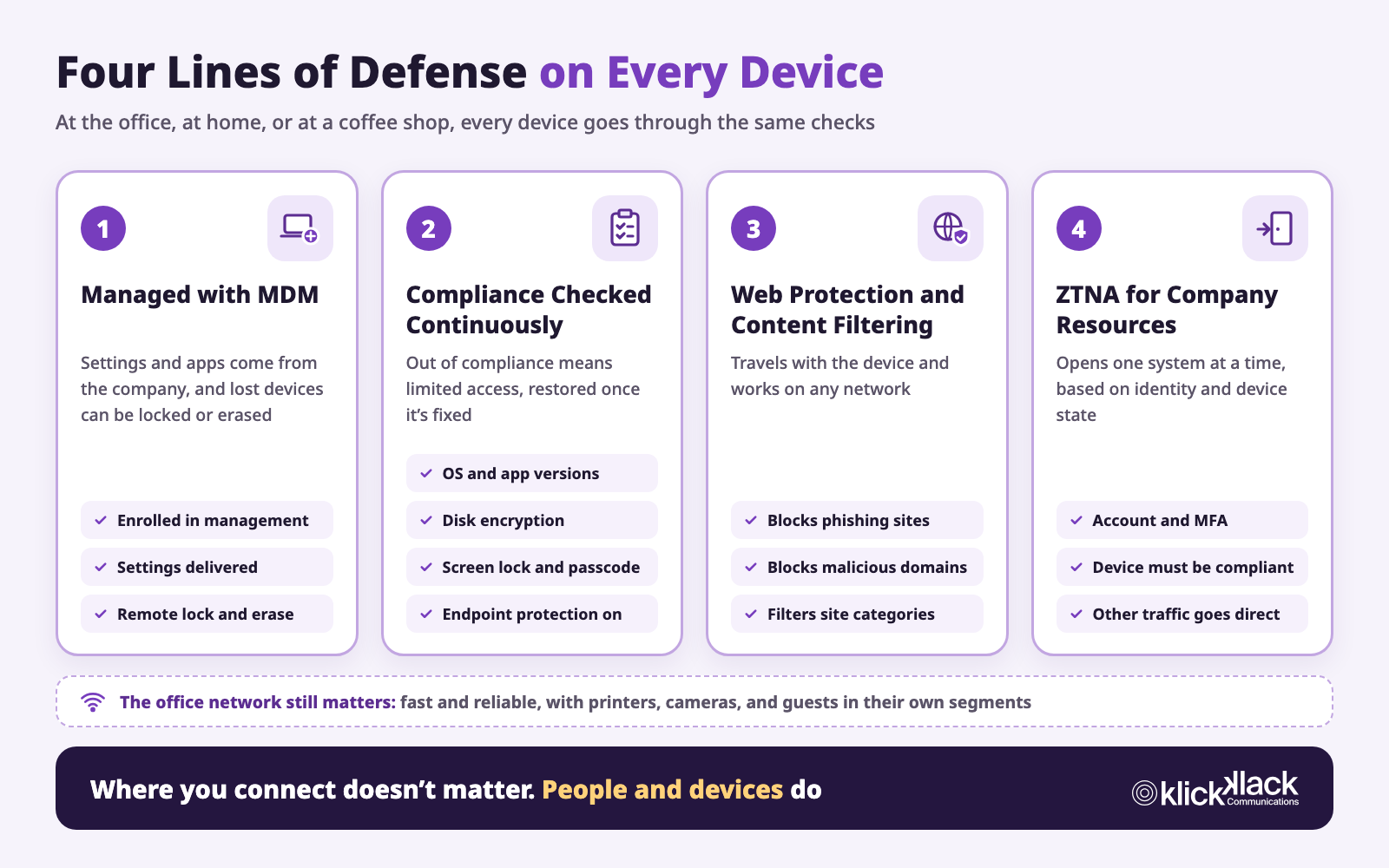
With coffee shop networking, every device carries its own protection. In practice, that means four things.
1. Devices Are Managed with MDM
MDM (mobile device management) lets a company manage computers, phones, and tablets in one place: deliver settings and apps, require encryption, and lock or erase a device remotely if it's lost.
This is the foundation for the other three lines of defense. The company first needs to know that a device belongs to it and is managed by it, or the checks that follow don't mean much. A device that isn't managed shouldn't get access to company resources. For more on getting started with MDM, see the Apple MDM complete guide.
2. Compliance Is Checked Continuously
Once a device is managed, you still need to know it's healthy right now:
- Is the operating system up to date, with security updates installed?
- Is the disk encrypted, and are a screen lock and passcode set?
- Are the firewall and endpoint protection turned on?
- Are any apps out of date, such as a browser version with known vulnerabilities?
When a device falls out of compliance, its access is limited automatically and restored once it's updated or fixed. The key word is continuous: not an inventory once a year.
3. Web Protection and Content Filtering Travel with the Device
Blocking phishing sites, malicious domains, and suspicious downloads used to be the office firewall's job. With coffee shop networking, these checks run on the device, or through a cloud service the device connects to, so the rules are the same whether someone is on office Wi-Fi, a home network, or a phone hotspot.
Companies can also filter categories of websites based on policy, such as gambling, adult content, or high-risk file sharing sites. Attacks often disguise themselves as everyday software, like the fake Zoom installer behind the CloudSyncD backdoor, so protection needs to be on the device wherever it goes.
4. ZTNA for Access to Company Resources
ZTNA (zero trust network access) replaces the model where connecting to a VPN puts you on the entire internal network:
- One app at a time: People can reach only the systems they're authorized to use, such as a specific internal website or file server, not the entire office network.
- Identity and device checked on every connection: People sign in with their company account and multifactor authentication (MFA), and the device must be managed and compliant. If the conditions aren't met, the connection doesn't go through.
- Other traffic goes directly: Only traffic bound for company resources goes through ZTNA. Streaming video and video calls use the local connection, without detouring through the office.
The same applies inside the office. Someone sitting at their desk still goes through the same ZTNA checks to reach internal systems; being in the office doesn't open the door automatically.
Same Rules, Wherever You Connect?
| Traditional (Office Firewall) | Coffee Shop Networking | |
|---|---|---|
| At the office | Connect to the office network and see the entire internal network | Same as anywhere else: specific systems open based on identity and device state |
| At home | Connect to a VPN, often routing all traffic back to the office | The device carries its own web protection, and company systems are reached through ZTNA |
| Coffee shops, airports, and hotels | Almost no protection without the VPN | Exactly the same rules as at home or at the office |
| Someone leaves or loses a device | Change VPN passwords and check network settings | Turn off the account or remove the device from management, and access ends |
| A device misses updates | Still trusted once it's on the office network | Access is limited automatically and restored after updating |
Three Common Misconceptions
Misconception 1: The Office Network No Longer Matters
It's the opposite. Coffee shop networking changes the office network's role, not its importance.
Printers, cameras, door access systems, meeting room equipment, and smart TVs can't run apps or authenticate users. They still depend on the office network:
- Segmentation: Employees, guests, and IoT devices each use their own network segment and can't freely reach each other.
- Only the connections that are needed: For example, printers only accept print jobs, and camera recorders stay off the internet.
- Fast and reliable: With everyone on cloud services and video calls, bandwidth and Wi-Fi quality directly affect work.
In other words, the office network moves from being the trust boundary to being a fast, reliable network that also takes care of the equipment that can't run apps. The office network planning guide covers how to plan network segments.
Misconception 2: You Have to Tear Out the VPN and Firewall
You don't. Both NIST and Taiwan's National Institute of Cyber Security note that zero trust is a journey, not a large-scale replacement of infrastructure all at once, and that new and traditional approaches will run side by side for a while.
A practical order is to start with the systems that matter most and are accessed from outside most often, gradually moving their access to identity and device checks. Older systems can keep their current setup for now and move over later. The firewall keeps protecting the office network; it just isn't the only line of defense anymore.
Misconception 3: Zero Trust Means Not Trusting Employees
Zero trust doesn't trust network location. It has nothing to do with distrusting your coworkers. For your team, good coffee shop networking is actually more convenient: no connecting to a VPN and waiting for traffic to route through the office just to open a file, and the same experience wherever they work. When a device has a problem, they're told exactly what needs updating.
Where to Start: Five Steps
- Take inventory: How many computers, phones, and tablets does the company have, and are they company owned or personal? Is your data in cloud services or on an office NAS and file server?
- Use one company account and turn on MFA: Each person signs in to every system with one company account, protected by multifactor authentication. This is the foundation for checking identity.
- Bring every device under management: Company devices are always enrolled in MDM, and personal devices use an enrollment method that keeps work and personal data separate. Set a compliance baseline, such as OS version, encryption, and screen lock.
- Add web protection to devices: Make sure protection against phishing and malicious sites, along with content filtering, travels with each device.
- Move company resources to ZTNA and segment the office network: Start with new and critical systems, opening them based on identity and device state, and separate employees, guests, and IoT devices on the office network.
How KlickKlack Can Help
Coffee shop networking means taking care of both the devices and the network. KlickKlack has services for both:
- Devices (Apple devices): KlickKlack is the world's only Jamf partner holding Elite, MSP, and MSSP certifications. Jamf Pro manages Mac, iPhone, and iPad and checks compliance; Jamf Protect provides endpoint protection, web protection, and content filtering; and Jamf Connect lets people sign in with their company account and reach company apps through ZTNA. KlickKlack can deploy it for you, or run it as a managed service.
- Company accounts: Integration with Okta, JumpCloud, Google Workspace, or Microsoft Entra ID for unified sign-in and MFA.
- Office network: KlickConnect Office Network Services is delivered as a NaaS (Network as a Service) subscription, covering planning, installation, monitoring, and ongoing operations, including network segments for employees, guests, and IoT devices.
If your company also uses Windows or Android devices, we can plan for them together.
Not sure how far your company is from coffee shop networking? Contact us, and we can help, starting with an inventory. To learn more, see Jamf Apple Security and Device Management and KlickConnect Office Network Services.