On September 30, 2026, Jamf Threat Labs disclosed a new piece of macOS malware it calls CloudSyncD. It poses as a Zoom installer, and the most notable thing about it isn't technical. It's the background image in the installer window, which coaxes you, step by step, into approving an app your Mac has just blocked.
The researchers first saw it on September 15, in a build still under development. Two days later, builds wired to real servers appeared. Here is how it works in plain language, and where organizations can stop it.
1. A Zoom Installer That Looks Perfectly Normal
Open the downloaded disk image and the window looks like any other Mac installer: the Zoom icon on the left and a shortcut to the Applications folder on the right.
The only difference is the background. It carries a numbered setup list: open System Settings, click Privacy & Security, scroll down to Security, click Open Anyway, and enter your administrator password.
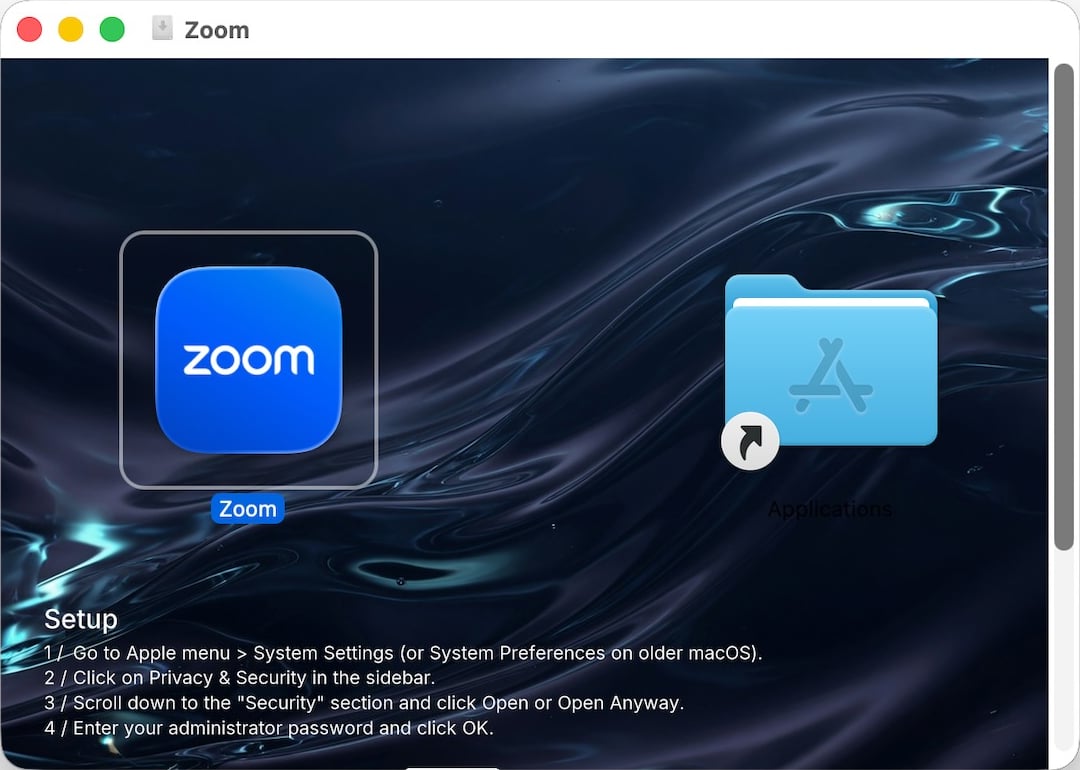
Image: Jamf Threat Labs
Why? Because this app isn't notarized. Legitimate Mac software comes from developers who register with Apple and submit their apps for an automated malware scan, a process called notarization. Gatekeeper in macOS checks for it, and an app without it won't open with a double-click.
Starting with macOS Sequoia, Apple removed the Control-click shortcut for opening a blocked app. The only way left is to go to System Settings and click Open Anyway yourself. CloudSyncD's authors simply printed that path on the installer window, so victims believe it's a normal part of installing Zoom.
The research doesn't say how the installer is distributed. Wherever it comes from, the "approve it in System Settings" step can't be skipped.
2. What Happens After You Enter Your Password
Once approved, the app shows an authorization dialog titled "Application wants to make changes.", followed by "Enter your password to allow this.", imitating the format and wording of the authorization dialogs macOS shows.
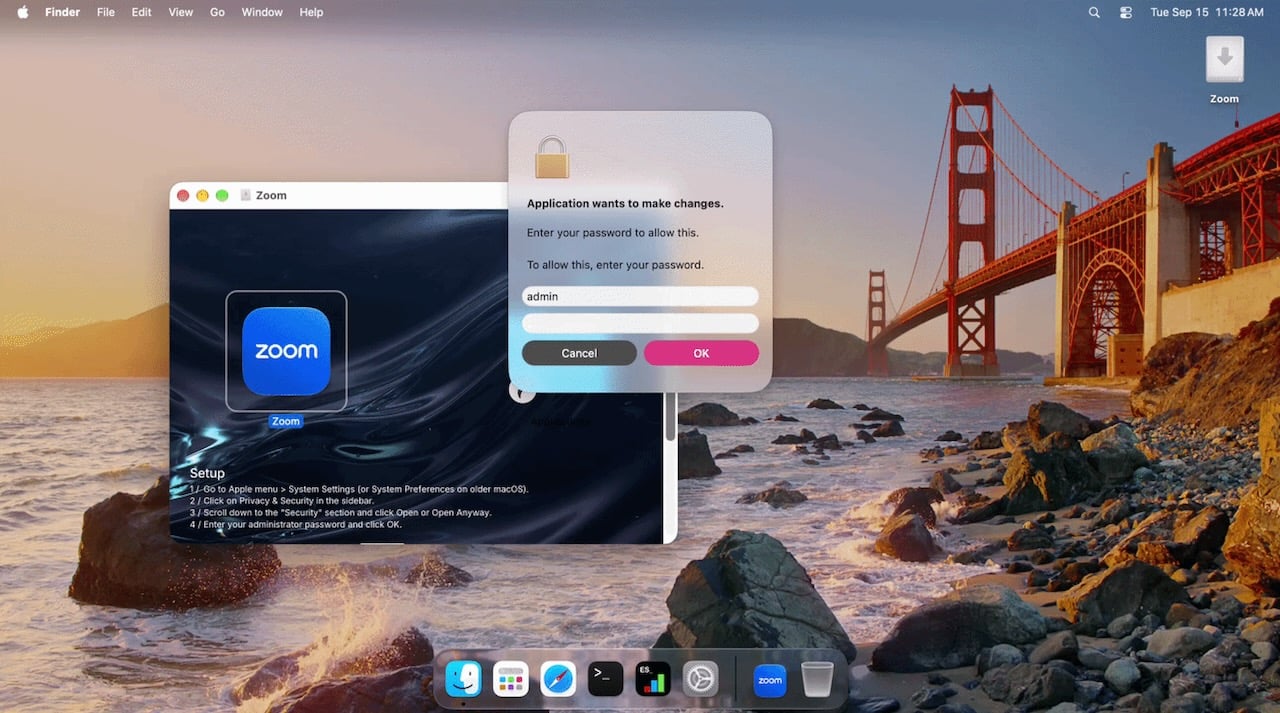
Image: Jamf Threat Labs
Another window shows a "Downloading Zoom..." progress bar that creeps forward on its own, with no download behind it.
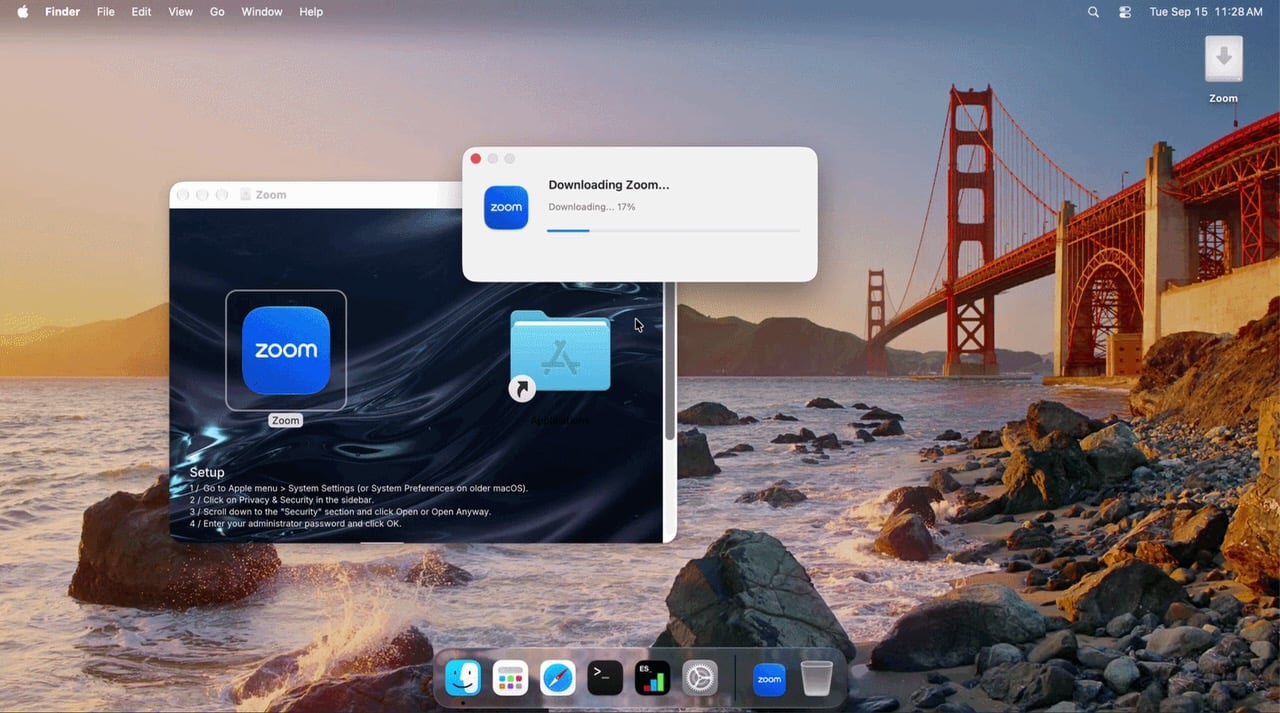
Image: Jamf Threat Labs
What happens next is invisible to the user:
- It checks the password: It quietly verifies the password with a system tool and keeps asking until it's correct.
- It hides the password: It writes the password into a file that looks like a Zoom settings file, buried in a long string of random characters. Where the password starts and how long it is are recorded with invisible zero-width characters after the version number. Open the file and all you see is
1.0.0. - It gains administrator privileges: Using the password it just captured, it launches a second-stage program as administrator. Nothing is downloaded: the second stage ships inside the installer.
- The backdoor starts checking in: The second stage is the cloudsyncd backdoor. It contacts the attacker's server every 8 to 16 seconds, at an address disguised as the common jQuery web library, so the traffic looks like ordinary browsing. On first contact it sends the computer's hardware model, processor, memory, macOS version, computer name, user name, and MAC address.
After that, it waits. The attacker can send a program at any time, and the backdoor runs it directly with administrator privileges.
3. It Steals Nothing, and That's the Worrying Part
The most common Mac malware in recent years is the infostealer, which grabs browser passwords, keychain items, and cryptocurrency wallets the moment it lands. CloudSyncD isn't one. It has none of those features, and the password it captures never leaves the computer. It's only used to gain privileges locally.
That's what makes it troublesome:
- It's holding a seat: It gets administrator privileges, reports in quietly, and waits for the attacker to decide what's next. The attacker sent no tasks during the research, so it never reached the step of installing itself as a background daemon. The real action may come long after everyone has forgotten about it.
- Blocklists won't catch it: Both server domains were registered in 2011, sit behind Cloudflare, and had no antivirus detections at the time of writing. Protection that depends on lists of known bad addresses had nothing to match.
- Two days from test to live: The attackers move fast. Defenders can't wait for the news to react.
Jamf's conclusion is blunt: infostealers may dominate the landscape, but attackers still have use for quiet malware that lies low until further access is needed. And it still relies on the oldest technique there is: asking the user for their password.
4. Two Checkpoints, Both Requiring Administrator Privileges
Lay the chain out and CloudSyncD has to clear two checkpoints:
- Clicking Open Anyway to approve the app requires an administrator name and password.
- Launching the backdoor as administrator requires the captured password to carry administrator privileges.
If employees use a standard account day to day, clicking Open Anyway asks for an administrator's name and password. They don't have one, and the scam stops there. Even if the app somehow runs, the password it captures has no administrator privileges, so the second checkpoint fails too.
This isn't a cure designed for CloudSyncD. It's a general principle: the privileges attackers want are privileges everyday accounts shouldn't have.
5. How Organizations Can Defend
Use Standard User Accounts
The most direct layer. Everyday accounts have no administrator privileges. When elevation is needed, use a temporary, logged elevation process instead of giving everyone administrator privileges.
A Trusted Source for Software
Employees search the web for a Zoom download because the company hasn't given them an easier way. Through the MDM Self Service portal, publish official versions of Zoom, web browsers, and messaging apps. Employees install with one click, and updates are automatic. With a trusted source in place, there's little reason to go looking for installers elsewhere.
Application Control That Decides What Runs
macOS 27 includes a built-in app allowlist. IT decides which programs may run, and anything not on the list is blocked, without relying on user judgment. See Five Things That Change in Mac Management for details.
Endpoint Security That Watches Behavior, Not Just Lists
Jamf says that setting Threat Prevention, Advanced Threat Controls, and Web Protection to Block and Report in Jamf for Mac helps prevent similar threats from running. Since these server domains had no detections at the time of writing, behavior matters even more: a non-Apple program verifying the user's password in the background, then launching another program from a temporary folder with administrator privileges, is a warning sign on its own.
One Rule Employees Can Remember
Legitimate software never asks you to click Open Anyway in System Settings. The Zoom installer on Zoom's website is notarized by Apple and opens normally. If a well-known app gets blocked, the problem is the file, not your computer. Any installer that tells you to bypass a system warning is a reason to stop and contact IT.
For IT and Security Teams: Quick Checks
- Block domains:
orchid-led[.]comandbjzhishang[.]com, both using the same disguised path,/macos/jquery.js - Check folders:
~/.local/share/cloudsync/in each user's home folder. Thesync.errfile inside is the backdoor's encrypted log and can reveal the server address and check-in history. - Check decoy settings files:
~/.config/zoom/data.jsonor~/.config/cloudsync/data.json, with zero-width characters after the version value - Full indicators of compromise: file hashes, encryption keys, and observed command lines are listed at the end of the Jamf Threat Labs report
How KlickKlack Can Help
KlickKlack is the only partner worldwide holding all three Jamf certifications, Elite Partner, MSP, and MSSP, with Apple device management deployments across semiconductor, electronics manufacturing, finance, government, and education.
- Account privilege design: standard user privileges by default for everyday use, elevation to administrator only for the users and situations that require it, and an audit trail for every elevation
- Self Service app catalog: official, up-to-date versions of common apps, so employees never need to search for installers
- Application control: planning a macOS 27 allowlist that covers the updaters and helper programs in company software without breaking workflows
- Managed services (MSP/MSSP): keeping threat prevention policies, privileges, and software sources in the right state, with ongoing monitoring, as a routine service outcome
Further reading: OS 27 Mac Management Changes · Can a Mac Get Hacked? · macOS Built-in Security
Contact KlickKlack for a free review of account privileges and software sources across your Mac fleet.