Working from home, traveling, and visiting clients are part of everyday work at many companies. Your team is outside the office, but what they need is still inside: contracts on the file server, design files on the NAS, and internal systems that only work on the office network. And when a company adds a branch office or a warehouse, both sites need to share data too.
The most common answer is a VPN (virtual private network). It creates an encrypted tunnel between a team member's device and the office, so once connected, it's just like sitting at your desk. We covered why devices shouldn't sit open on the internet, and why a VPN is the safer path, in why your NAS and camera recorder shouldn't sit open on the internet.
This article covers the next step: how to choose a company VPN.
The Short Answer: Management Matters More Than Protocols
Search for "company VPN" and you'll find a long list of protocol names and hardware specs. These are the underlying technology, and for most small and midsize businesses, today's mainstream options all offer strong enough encryption.
What really decides whether a VPN works well are questions like these: Does everyone share one account? Did anyone remember to remove access when someone left? Can you tell who connected when something goes wrong? Does the connection slow to a crawl? Has anyone updated the office equipment in years?
So before you choose a company VPN, think through these six questions.
1. Who Needs to Connect: People or Another Office?
A company VPN usually serves one or both of these purposes:
- Remote access for your team: People working from home, traveling, or visiting clients connect back to the office from a laptop or phone to use the file server, NAS, and internal systems. This is the most common remote work need.
- Connecting offices: Headquarters, branch offices, stores, or warehouses share a permanent encrypted connection, so computers, printers, and camera recorders at each site work as if they're on the same network.
Many companies need both. Start by listing how many people need to connect from outside, which systems they use, and whether other sites need to be connected, so the rest of the plan doesn't have to be redone.
2. Does Everyone Have Their Own Connection, or Do They Share One?
Many company VPNs start like this: IT or a vendor sets up one username and password, writes it in a shared document, and anyone who needs it helps themselves.
It's convenient at first, but problems build up:
- No one knows who has the password now
- When someone leaves, changing the password means everyone has to set up the connection again
- When something goes wrong, the logs only show that the shared account connected, not who it was
A better approach is one connection per person: each team member has their own connection profile and signs in with the work account they already have, so you always know who connected.
3. When Someone Leaves or Loses a Phone, How Fast Can You Turn Off Access?
Staff changes are where VPNs most often break down. A former employee's laptop still has the connection set up, or a lost phone can still connect, which means a key to your office is out in the world.
Ask a practical question when choosing a VPN: On someone's last day, who turns off their connection, and how long does it take? If the answer is "we have to schedule time with the vendor," the risk stays open until then. Ideally, your company admin can turn it off on a website, for just that one person, without affecting anyone else.
4. Can You Tell Who Connected When Something Goes Wrong?
Customer audits, security investigations, and suspected data leaks all lead to the same question: who connected to the office, when, and from where?
If the VPN doesn't keep logs, or the logs live on one device and can't be exported, you won't have evidence when you need it. When choosing a VPN, check whether connection logs can be exported, and whether they can be changed after the fact.
5. Which Traffic Should Go Through the VPN, and Will It Slow Things Down?
"The internet gets so slow on the VPN" is one of the most common complaints. It usually comes down to how traffic is routed:
- Only office traffic goes through the VPN: Company files and internal systems use the encrypted tunnel, while streaming video and video calls use the local internet connection where the person is. This is enough for most companies, and less likely to slow things down.
- All traffic goes through the office: Everything a person does online goes to the office first, then out to the internet. This suits companies whose policies require central control of outbound connections, but it uses more of the office's bandwidth.
Either way, a VPN can only be as fast as the office's internet bandwidth. If many people use company files from outside, plan the office bandwidth to match.
6. Who Takes Care of the Office Equipment?
A VPN needs a device at the office, called a gateway, that receives connections. That gateway is itself a door facing the internet. Like a NAS, it needs updates and monitoring, and someone to handle it when something goes wrong.
At many companies, the VPN equipment was set up once during the original network project and hasn't been touched since. When choosing a VPN, also decide who updates the office equipment, who notices when it goes offline, and who your team contacts when they can't connect.
Three Common Scenarios
Here's how these six questions apply in a few industries:
- Law firms and other professional services: People need case files from the file server while in court or visiting clients, and the data is especially sensitive. The focus is one connection per person, turning off access on someone's last day, and exportable logs for client or regulatory reviews.
- Online retail: Customer service and operations teams handle orders from home and need internal systems. If there's also a warehouse or store with its own cameras and equipment, it makes sense to plan remote access and connections between sites together, so camera recorders don't need to be open to the internet.
- Software and internet companies: Engineers connect remotely to test environments and internal tools, and offices may span several floors or cities. The focus is a stable connection, the right traffic routing, and whether office bandwidth needs an upgrade.
KlickConnect SecureLink: Your VPN, Managed with Your Office Network
KlickConnect SecureLink is KlickKlack's secure remote access service, used together with KlickConnect Office Network Services. One team plans, builds, and runs both your office network and your VPN, with an answer for each of the six questions:
- Both uses supported: SecureLink handles remote access for your team, as well as connections between headquarters and branch offices.
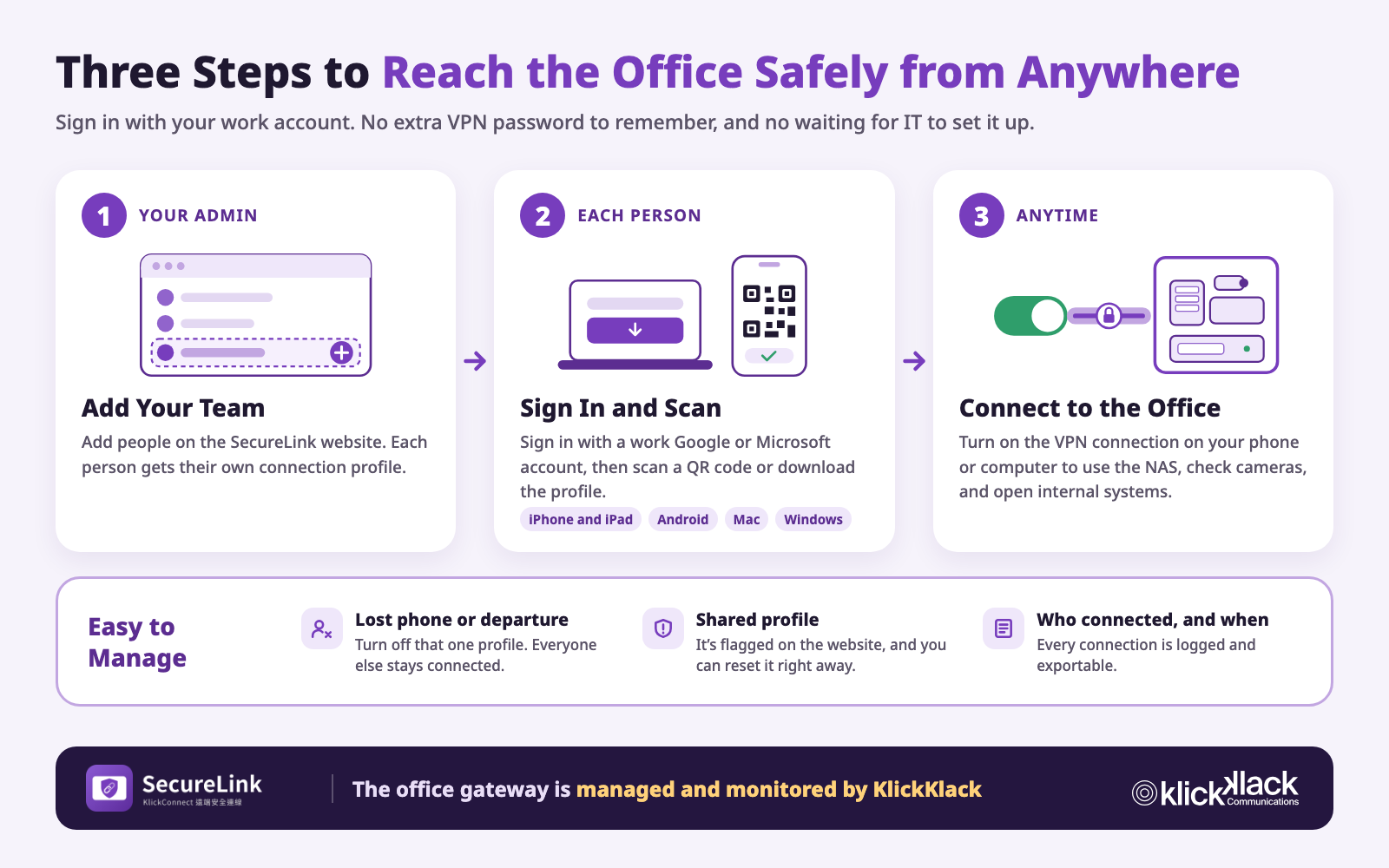
- One profile per person, with a work account: Team members sign in with their company Google or Microsoft account, or with a sign-in link sent by email. They scan a QR code on a phone or download a profile on a computer. It works on iPhone, iPad, Android, Mac, and Windows.
- Staff changes handled on the website: Your company admin adds and turns off people on the SecureLink website. When someone leaves or loses a phone, you turn off just that one profile. A profile used on several devices at once is flagged.
- Every connection is logged: Who connected, when, and from where is recorded and can be exported. Activity logs can only be added to, never edited.
- Traffic routing that fits your needs: By default, only traffic bound for the office goes through the encrypted tunnel. You can also route all traffic through the office network.
- No limit on the number of people: Connection speed depends on your office's internet bandwidth.
- Office gateway managed by KlickKlack: Setup, monitoring, and maintenance of the gateway are handled by KlickKlack, together with the rest of your office network. If the gateway goes offline, team members see a notice on their SecureLink page.
Getting started follows the same process as KlickConnect: requirements interview, site survey, architecture planning, professional deployment, and ongoing operations. KlickConnect is a flexible subscription service that can be customized to your needs, with a plan that fits your budget.
Not sure whether your company's current VPN is working as it should? Contact us, and we can help you review it. Learn more about KlickConnect Office Network Services.