How many people know your office Wi-Fi password right now?
Everyone on the team knows it. So do the vendors who came in for meetings, and the coworker who left last month. Someone wrote it on the whiteboard in the meeting room, and someone else posted it in a group chat. Changing it means every laptop and phone in the company has to enter the new password, so it never gets changed.
That's the built-in limit of WPA2 and WPA3 Personal: one shared password for everyone, and a network that can't tell people apart. The way to fix this at the office is 802.1X. Each person connects to Wi-Fi with their own company account, or with a certificate on a company device, and access ends when the account is turned off.
This article covers three things: how 802.1X connects to company account systems such as Microsoft Entra ID, Google Workspace, Okta, and JumpCloud; how the EAP-TTLS and EAP-TLS authentication methods differ; and why the end goal is to use MDM and SCEP to deliver a certificate to every device.
What's Wrong with a Shared Wi-Fi Password?
- People who left can still connect: A password doesn't leave when an employee does. If they're nearby, or the password is saved on a personal device, they can still join the company network.
- One password change means resetting the whole company: When the password leaks, it should be changed, but every device would need the new one. So it usually doesn't happen.
- No way to tell who's connected: Equipment logs show only device hardware addresses (MAC addresses), which are hard to match to a person or device when something goes wrong.
- Everyone is on the same network segment: Employees, vendors, and unknown devices all land in the same place when they join the same Wi-Fi network, with no way to grant different access by role.
How 802.1X Works
802.1X is an IEEE standard for network access control. When you see WPA2 Enterprise or WPA3 Enterprise in Wi-Fi settings, that's Wi-Fi encryption combined with 802.1X authentication. Network switches can use the same mechanism for wired connections.
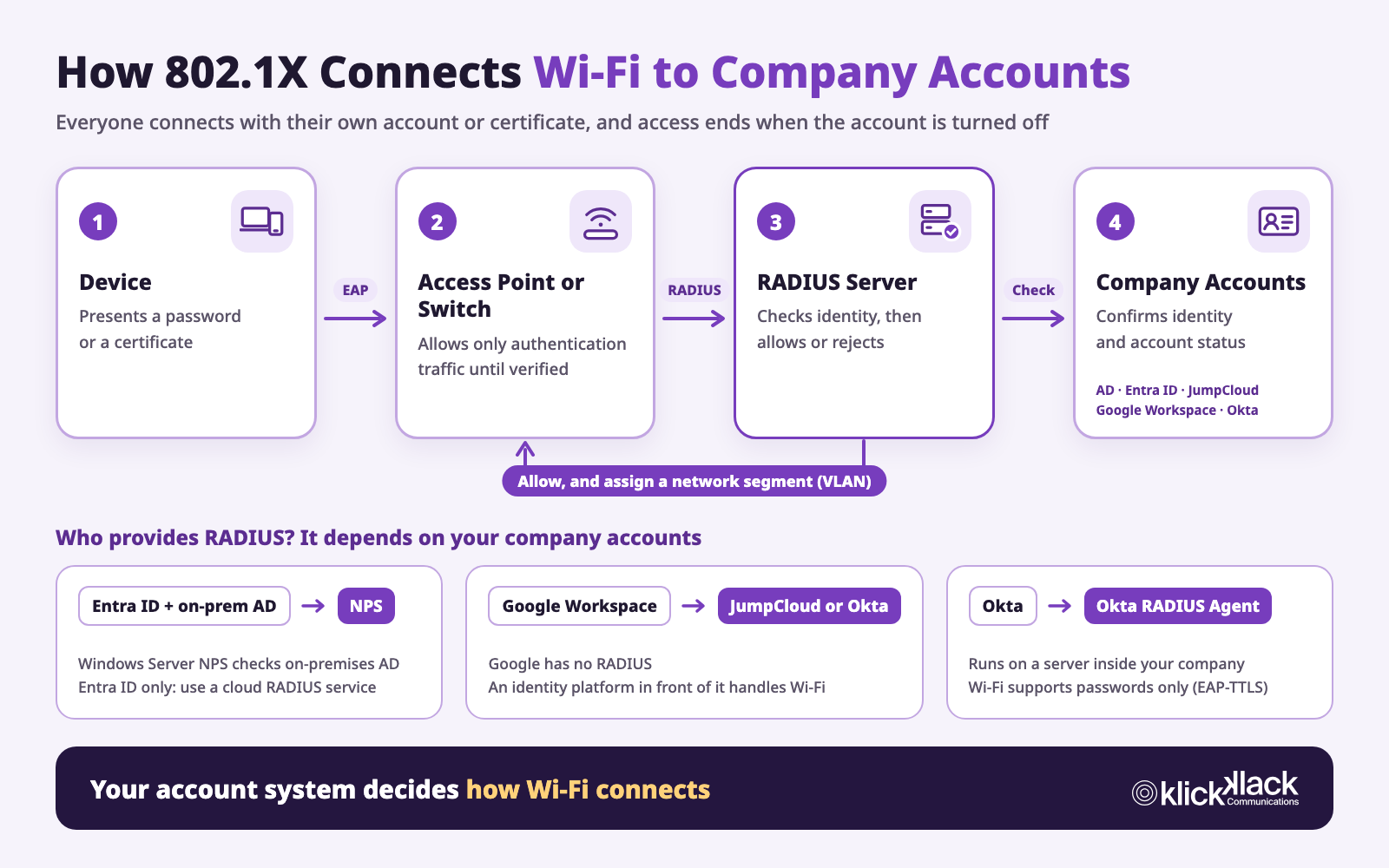
Four roles are involved in each connection:
- The device: A laptop, phone, or tablet presents a username and password, or a certificate.
- The access point or switch: Until the device is authenticated, it allows only authentication traffic and blocks everything else.
- The RADIUS server: The RADIUS (Remote Authentication Dial-In User Service) server makes the decision. It checks the password or certificate from the device, tells the access point to allow or reject the connection, and can also specify which network segment the device belongs on.
- The company account system: This is where the RADIUS server confirms who someone is and whether their account is still active, such as Active Directory, Microsoft Entra ID, Google Workspace, Okta, or JumpCloud.
With 802.1X, all four problems above have an answer. Everyone connects with their own identity, and turning off an account ends access. There's no shared company password to change. Connection logs show which account connected. And the RADIUS server can place people on different network segments based on department or role, which is known as dynamic VLAN (virtual LAN) assignment.
There's one important catch: most cloud account systems don't speak RADIUS directly. Services like Entra ID and Google Workspace are built for signing in to websites and apps with SAML and OpenID Connect, while access points speak RADIUS. Something has to sit in between and translate, so the account system your company uses determines how Wi-Fi gets connected.
Three Account Systems, Three Approaches
Microsoft Entra ID: Through On-Premises Active Directory and NPS
Entra ID doesn't provide RADIUS on its own. In Microsoft environments, the most common approach is to use NPS (Network Policy Server), a role built into Windows Server, as the RADIUS server.
Keep in mind that NPS checks accounts in your on-premises Active Directory (AD), not in Entra ID. This approach fits hybrid environments where on-premises AD syncs to Entra ID through Entra Connect. Your team uses one set of credentials, and NPS checks with AD for Wi-Fi authentication.
NPS supports two common authentication methods: PEAP-MSCHAPv2 (username and password) and EAP-TLS (certificates). It doesn't support EAP-TTLS, so Mac, iPhone, and iPad also need one of those two methods to connect through NPS.
Watch for two pitfalls when planning:
- Windows 11 makes PEAP-MSCHAPv2 harder to use: Starting with Windows 11, version 22H2, eligible computers have Credential Guard turned on by default, and saved MSCHAPv2 credentials can no longer be used for single sign-on. People have to enter their password again in every new Windows session. Microsoft recommends moving to certificate-based EAP-TLS or PEAP-TLS.
- Certificates must map to an AD account: Since 2025, Microsoft has enforced strong certificate mapping in AD. User certificates delivered by MDM need information that maps them to an AD account, such as the account's security identifier (SID), or NPS authentication fails.
If your company has Entra ID but no on-premises AD, NPS won't work. Use a cloud RADIUS service that connects to Entra ID instead. For example, JumpCloud can use Entra ID as its authentication source and check Entra ID passwords with EAP-TTLS. For certificate-based authentication, choose a cloud RADIUS service that supports EAP-TLS, with certificates delivered by Intune or another MDM solution.
Google Workspace: Paired with Okta or JumpCloud
Google Workspace doesn't provide RADIUS either. Some plans include Secure LDAP, which lets a RADIUS server you host yourself check usernames and passwords, but you have to set up and maintain that server, and it supports only password-based EAP-TTLS.
A more common approach is to put an identity platform in front of Google Workspace and let it handle Wi-Fi:
- JumpCloud: Accounts are managed in JumpCloud and synced to Google Workspace. JumpCloud includes cloud RADIUS, so there's no server to host, and it supports PEAP, EAP-TTLS, and EAP-TLS. JumpCloud PKI, introduced in October 2026, can also deliver and renew certificates automatically on Mac and Windows computers through JumpCloud's own MDM and SCEP.
- Okta: People sign in to Google Workspace with Okta, and Wi-Fi uses the Okta RADIUS Agent, described in the next section.
Okta: A Built-In RADIUS Agent, Limited to Passwords
Okta has its own RADIUS Server Agent, so you don't need to buy a separate RADIUS service. The agent runs on a server inside your company and forwards authentication requests from your access points to Okta.
For Wi-Fi, there are a few limits:
- EAP-TTLS only: The agent supports PAP, EAP-GTC, and EAP-TTLS. PEAP-MSCHAPv2 and certificate-based EAP-TLS aren't on the list.
- Wi-Fi isn't the main use case: Okta's RADIUS documentation focuses on VPNs, and Wi-Fi infrastructure is listed under limitations. Okta's published Wi-Fi setup guide covers Cisco Meraki wireless networks, and EAP-TTLS has to be turned on for your organization by Okta Support.
Okta works well for letting your team connect to Wi-Fi with their Okta accounts. To move to certificate-based EAP-TLS, you need a separate RADIUS and certificate service that works with Okta.
Comparing the Approaches
| Company accounts | RADIUS provided by | Username and password | Certificates (EAP-TLS) |
|---|---|---|---|
| Entra ID with on-premises AD | Windows Server NPS | PEAP-MSCHAPv2 | Supported |
| Entra ID only | Cloud RADIUS service, such as JumpCloud | EAP-TTLS | Depends on the service |
| Google Workspace | JumpCloud or Okta | Depends on the service | Supported with JumpCloud |
| Okta | Okta RADIUS Agent on a company server | EAP-TTLS | Not supported; requires another service |
| JumpCloud | JumpCloud cloud RADIUS | PEAP, EAP-TTLS | Supported |
EAP-TTLS and EAP-TLS: Passwords or Certificates?
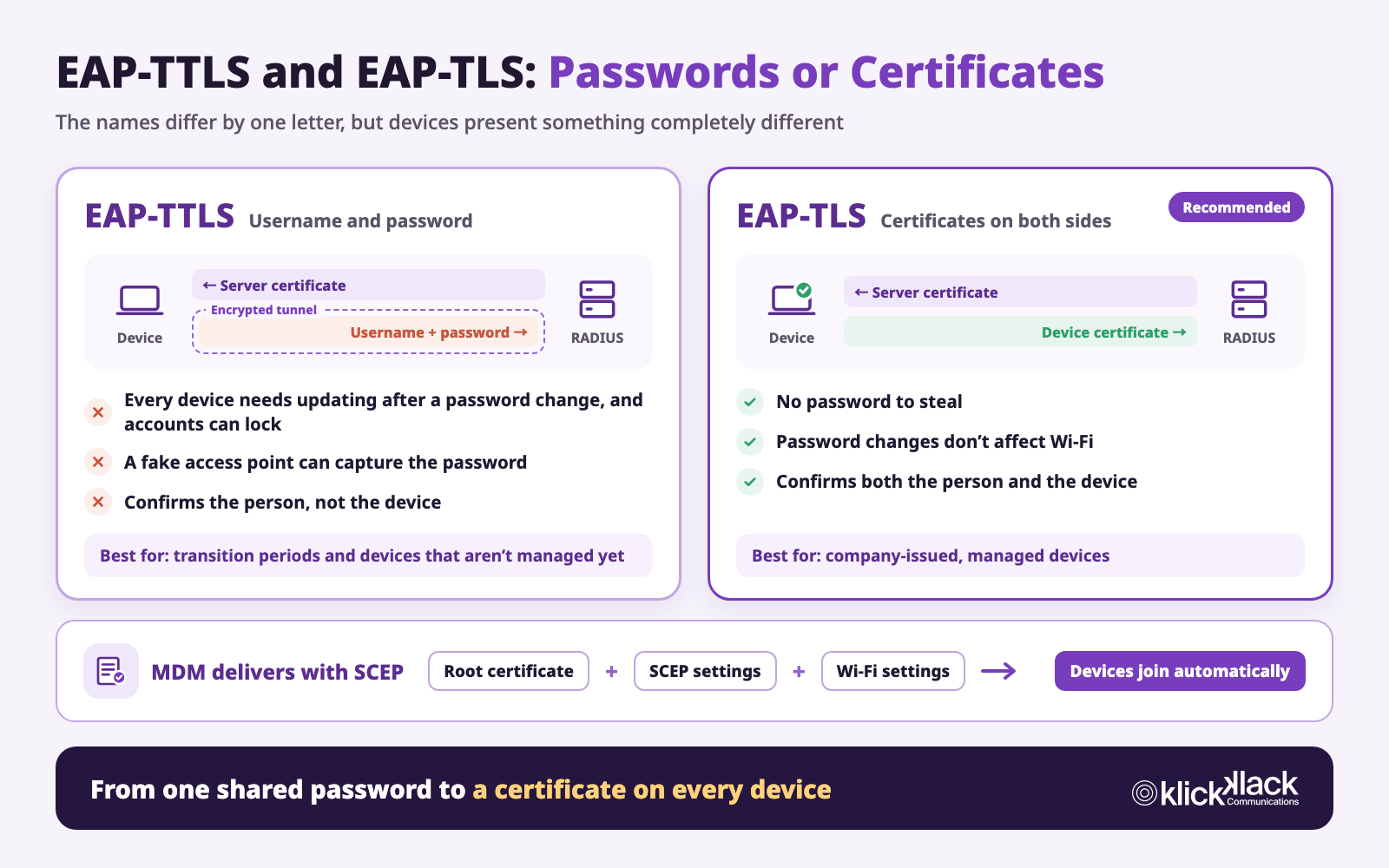
802.1X defines the framework for authentication. What the device actually presents depends on the EAP (Extensible Authentication Protocol) method. The two most common methods for company Wi-Fi differ by just one letter, but they work very differently.
Both start the same way: the RADIUS server presents its server certificate to prove it's your company's real RADIUS server. The difference is what the device presents in return.
EAP-TTLS: A Password Inside an Encrypted Tunnel
EAP-TTLS (EAP Tunneled Transport Layer Security) first builds an encrypted tunnel to the RADIUS server, then sends the username and password through it. The idea is similar to signing in to an HTTPS website. PEAP-MSCHAPv2, common in Windows environments, belongs to the same category and also authenticates with a username and password.
The advantage is that devices don't need certificates. A cloud account system only needs to check passwords, which is why Okta, JumpCloud's Entra ID delegated authentication, and Google's Secure LDAP all use this method. There are three drawbacks:
- Password changes break the connection and can lock accounts: After someone changes their company password, every device with the old password saved needs to be updated. Devices that aren't updated keep retrying the old password and can trigger an account lockout. Okta's setup guide specifically warns that macOS doesn't prompt the user to update the Wi-Fi password.
- Passwords can be stolen if devices don't verify the server: If someone sets up a fake access point with the same network name, known as an evil twin, and the device doesn't check the server certificate, it sends the username and password into the attacker's tunnel. PAP, the method commonly used inside EAP-TTLS, sends the password itself through the tunnel, so the attacker gets the password directly.
- It confirms the person, not the device: Any device can connect with the right username and password, including personal phones and unknown computers.
EAP-TLS: The Device Presents a Certificate Too
EAP-TLS (EAP Transport Layer Security) uses certificates on both sides. The RADIUS server presents its server certificate, and the device presents a certificate of its own. No password is involved.
- No password to steal: Even if a device connects to a fake access point, it has no credentials to hand over.
- Password changes don't affect Wi-Fi: Certificates aren't tied to passwords, so devices keep connecting automatically after someone changes their password.
- Both the person and the device are confirmed: Certificates are issued only to company-managed devices, so anything that connects is a company device.
- Nothing for your team to do: Once settings are delivered, devices connect automatically without anyone typing anything.
The trade-off is that you need a certificate authority (CA) and a way to get certificates onto every device. That's where MDM comes in.
Side by Side
| EAP-TTLS (password) | EAP-TLS (certificate) | |
|---|---|---|
| What the device presents | Company username and password | A certificate on the device |
| What you need | RADIUS server certificate | RADIUS server certificate, a CA, and MDM to deliver certificates |
| What it confirms | The person | The person and the device |
| When passwords change | Every device needs updating, and retries with the old password can lock the account | No effect |
| Fake access points | Passwords can be stolen if server trust isn't configured | No password to steal |
| Experience | Enter a username and password the first time | Connects automatically once MDM delivers settings |
| Best for | Transition periods and devices that aren't managed yet | Company-issued, managed devices |
A Certificate on Every Device: MDM and SCEP
Importing certificates by hand, one device at a time, doesn't scale, especially as devices multiply and certificates expire. MDM can automate the whole process. The most common method is SCEP (Simple Certificate Enrollment Protocol):
- MDM sends settings to the device that say which CA to request a certificate from and what kind of certificate to request.
- The device generates its own key and requests a certificate from the CA. The private key stays on the device and is never sent over the network.
- The CA issues the certificate, the device installs it, and the Wi-Fi settings use that certificate to connect.
In practice, one configuration profile usually contains three parts:
- A root certificate: Lets devices trust your company's RADIUS server certificate.
- SCEP settings: Request a certificate for this device or this user.
- Wi-Fi settings: The network name, WPA2 or WPA3 Enterprise, EAP-TLS, which certificate to use, and which RADIUS servers to trust.
Once these are delivered, devices join Wi-Fi automatically. MDM renews certificates before they expire. When someone leaves or loses a device, removing the device from MDM removes the settings and certificate together, and you can also revoke the certificate at the CA.
A new device doesn't have a certificate yet when it enrolls in MDM for the first time, so it needs another network to start with, such as guest Wi-Fi or a wired connection. Setup Assistant on Mac also supports joining an 802.1X network with a username and password using TTLS or PEAP.
Where does the CA come from? There are three common options:
- On-premises AD CS: Companies that already run Windows Server and AD can use Active Directory Certificate Services (AD CS). Jamf Pro connects to AD CS directly, and Intune uses its certificate connector.
- Cloud PKI: Services such as Microsoft Cloud PKI (an Intune add-on) and JumpCloud PKI mean there's no server to maintain.
- A CA included with a RADIUS service: Some cloud RADIUS services also provide a CA and SCEP, so certificates are issued and checked in the same place.
The Next Step for Apple Devices: ACME and Hardware-Bound Keys
Apple devices also support ACME (Automated Certificate Management Environment), a newer protocol than SCEP. With Managed Device Attestation, the key is generated by the device's Secure Enclave and can't be exported, and the CA can confirm the request really comes from that managed device. On Mac computers with Apple silicon, these hardware-bound keys can be used for 802.1X network authentication, so the certificate can't be moved to another device. Your CA also needs to support ACME.
Use MDM for Settings, Even If You Start with EAP-TTLS
Not every company can have certificates ready on day one. Starting with EAP-TTLS or PEAP is fine, but Wi-Fi settings should still come from MDM. When the settings specify that only your company's RADIUS server certificate is trusted, devices don't ask people whether to trust a certificate, and they won't send passwords to a fake access point.
What About Guests, Printers, and Personal Phones?
802.1X is for your team and company devices. Other devices at the office need their own plan:
- Guests: A separate guest Wi-Fi network, isolated from company network segments, with internet access only.
- Printers, cameras, and meeting room equipment: Many IoT devices don't support 802.1X. Put them on a separate IoT network segment with only the connections they need.
- Personal phones: This depends on company policy. Personal devices can use the guest network. Devices used for work can enroll in MDM with an enrollment method that keeps work and personal data separate, and then receive the company Wi-Fi settings.
For more on planning network segments, see the office network planning guide.
Where to Start: Five Steps
- Review your company accounts: Do you use on-premises AD, Entra ID, Google Workspace, Okta, or JumpCloud? Does everyone have their own account?
- Review devices and MDM: How many company computers and phones are already managed with MDM? Which MDM solutions do your Mac and Windows computers use?
- Check your network equipment: Confirm that your access points and switches support WPA2 or WPA3 Enterprise and dynamic VLAN assignment.
- Choose a RADIUS service and a CA: Based on your account system, choose NPS, JumpCloud, the Okta RADIUS Agent, or another cloud RADIUS service. If you plan to use EAP-TLS, choose a CA at the same time.
- Deliver settings with MDM, then retire the shared password: Deliver the root certificate, SCEP settings, and Wi-Fi settings, test with a small group, switch everyone over, and finally turn off the old shared-password network.
How KlickKlack Can Help
Connecting Wi-Fi to company accounts involves the network, the accounts, and the devices. KlickKlack has services for all three:
- Office network: KlickConnect Office Network Services is delivered as a NaaS (Network as a Service) subscription. We plan WPA2 and WPA3 Enterprise Wi-Fi, connect it to RADIUS, and place employees, guests, and IoT devices on separate network segments.
- Company accounts: Integration with Okta, JumpCloud, Google Workspace, or Microsoft Entra ID, so Wi-Fi and your other systems use the same company account.
- Devices (Apple devices): KlickKlack is the world's only Jamf partner holding Elite, MSP, and MSSP certifications. Jamf Pro delivers SCEP certificates and Wi-Fi settings to Mac, iPhone, and iPad. KlickKlack can deploy it for you, or run it as a managed service.
If your company also uses Windows or Android devices, we can plan for them together.
Ready to move your office Wi-Fi from a shared password to company accounts? Contact us, and we can help, starting with an inventory. To learn more, see KlickConnect Office Network Services and Jamf Apple Security and Device Management.